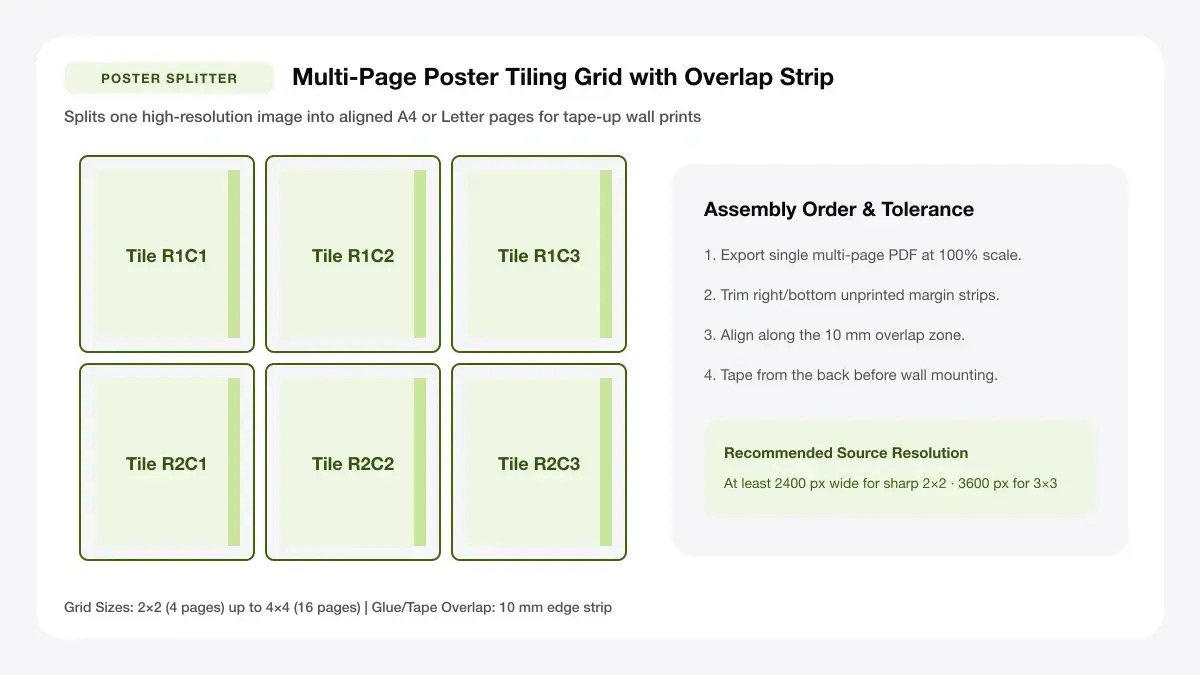
How Multi-Page Poster Overlap & Trim Lines Align
Understand pixel resolution minimums (DPI) and glue overlap tabs before tiling wall posters across multiple A4 or Letter pages.
How to print a big picture on multiple pages: the quick method
The cleanest approach when figuring out how to print a big picture on multiple pages follows three repeatable stages: calculate sheet rows and columns, reserve an overlap strip, and trim precisely along crop ticks.
Split the image into a grid of tiles
Choose how many sheets wide by how many sheets tall your final poster should span—for example 2×2 (4 pages ≈ A2), 3×3 (9 pages ≈ A1), or 4×4 (16 pages for bold corridor banners).
Add overlap and crop marks
Every home printer leaves a ~5 mm unprintable border on normal plain paper. Setting an 8–12 mm tile overlap plus tiny corner crop ticks gives you a crisp gluing flap and exact alignment target so you never have white printer-margin stripes breaking the artwork.
Print and tape the pages together
Trim only one overlapping edge (say the left edge of Column 2, and top edge of Row 2), apply acid-free glue stick or double-sided runner tape onto the covered tab underneath, and burnish flat from the rear with archival drafting or clear tape.
How to print one image on multiple pages in common programs
Here is how different free and desktop tools solve how to print one image on multiple pages, how to print a picture in multiple pages, and how to print a picture on multiple pages cleanly.
Use a poster splitter tool
Dedicated browser poster splitters handle the pixel cropping math, overlap margins, page-numbering labels, and multi-page PDF creation in under ten seconds.
Fastest method for most people
No software install or manual canvas slices: pick rows × columns, preview exact split seams right over your photo, and download one ready-to-print multi-page PDF.
Use your printer's poster option
Adobe Acrobat Reader's built-in Print -> Poster option (and select Canon/Epson Windows driver utilities) can enlarge single PDFs by 200% or 300% onto tiled sheets with Cut Marks enabled.
Windows and macOS print dialogs
Windows users often find 'Poster' inside proprietary manufacturer dialogs (Epson/Brother), whereas macOS native Preview lacks built-in multi-page poster tiling unless exported via a multi-page PDF splitter first.
Use Word, PowerPoint or Photoshop tiling
Microsoft Excel and Publisher offer rudimentary multi-page grid scaling, while Photoshop requires slicing guides manually and exporting individual crops.
Tile page by page
Manual slicing works when adjusting colour shifts per tile, yet takes ten times longer than generating an automatic tiled PDF when figuring out how to print picture in multiple pages.
— FASTER BROWSER ALTERNATIVE —
Skip Manual Setup — Use Our Free Print Big Picture on Multiple Pages
Instead of wrestling with printer driver scaling or manual table margins, generate a locked 100%-scale PDF directly in your browser using our print big picture on multiple pages tool.
How to print a picture larger than one page at the right size
To master how to print a picture larger than one page without muddy blocky squares, pair real-world viewing distance with honest source pixel counts.
| Target Poster Size | Approx. A4 Grid | Finished Dimensions | Recommended Min Source Pixels |
|---|---|---|---|
| 2 × 2 Grid (Approx. A2) | 4 sheets portrait | ~380 × 550 mm (15 × 22 in) | 1,800 × 2,600 px |
| 3 × 3 Grid (Approx. A1) | 9 sheets portrait | ~570 × 825 mm (22 × 32 in) | 2,500 × 3,600 px |
| 4 × 4 Grid (Approx. A0) | 16 sheets portrait | ~760 × 1,100 mm (30 × 43 in) | 3,200 × 4,500 px |
Pick a final poster size
Always subtract 10–15 mm per internal seam from raw sheet multiples when calculating finished wall width.
Common sizes: A2, A1 and A0
Notice ISO A-series geometry: two A4 sheets taped side-by-side equal A3, four sheets form A2 (with trim loss), and eight to nine sheets build an A1 bedroom poster.
Check resolution before you split
Wall posters are read from three to six feet away, so they tolerate lower effective PPI than hand-held album prints.
Minimum DPI for wall posters
Aim for 150 DPI at finished wall scale for crisp lettering and charts, or at least 100–120 DPI for scenic wall photography viewed across a room.
Choose paper that holds tape and ink
Standard 80 gsm copy paper ripples heavily under full-coverage dark ink photos and tears cleanly during trimming. Stepping up to 120–170 gsm heavyweight matte presentation paper costs pennies per sheet yet lies dramatically flatter on foam board.
Assembling a multi-page poster neatly
The cleanest print ruins itself if assembled haphazardly—take five quiet minutes at a kitchen table for seamless seams.
Trim or fold the overlap edges
Use a metal safety ruler and sharp craft knife—or a rotary bypass trimmer—to slice straight along the printed overlap crop marks on the overlapping edge of each right and bottom neighbour sheet.
Number the sheets and align the grid
Write light pencil coordinates (Row 1 Col 1, Row 1 Col 2...) on the blank back before shuffling trimmed sheets. Lay the entire grid dry first, aligning internal lines such as horizons or text baselines before applying adhesive.
Mount the poster on a wall or board
Dry-fit tiles Row by Row into wide horizontal strips first, then unite horizontal strips together over a flat sheet of A1/A2 foam core for rigid tabletop displays or locker walls.
Troubleshooting multi-page picture printing
Avoid re-printing 9 sheets by checking ink levels and scaling lock before firing the whole job.
Pages do not line up
Check that 'Fit to Page' wasn't left checked on page 1 or that paper guides inside the printer tray aren't loose—skewed trays twist diagonals across seams.
Colours differ between sheets
Always disable printer 'Auto Colour Enhance' on individual pages and print consecutive sheets in one uninterrupted run with full ink cartridges so nozzles never starve mid-poster.
Edges are cut off
Keep a non-zero overlap margin (8–10 mm) in your poster splitter so unprintable hardware margins stay outside the final trimmed artwork.
Frequently asked questions
Answers to common questions about how do i print a big picture on multiple pages and how do i print a large image on multiple pages.
How do I print one photo on 4 pages?
For anyone asking how to print 1 photo on 4 pages or how to print 1 image on multiple pages, open our Poster Splitter tool, upload your high-res file, set Grid to 2×2 (A4 or Letter), keep Overlap enabled at 10 mm, and download the 4-page PDF.
Is it free to print a big picture on multiple pages?
Yes. Using Print Sheet Maker's browser poster splitter costs nothing—you only supply regular A4 or US Letter paper and printer ink.
How many sheets do I need for an A1 poster?
Standard ISO geometry uses 8 sheets of A4 mathematically, though once you reserve internal glue-overlap tabs on a regular home printer, a 3×3 (9-sheet) grid safely delivers full ~57 × 82 cm A1 wall impact.
— PUT THIS WORKFLOW INTO ACTION —
Build Your Sheet with Print Big Picture on Multiple Pages
Generate a print-ready PDF with exact margins, custom gutters, and hairline crop marks right now—completely free and with no sign-up.