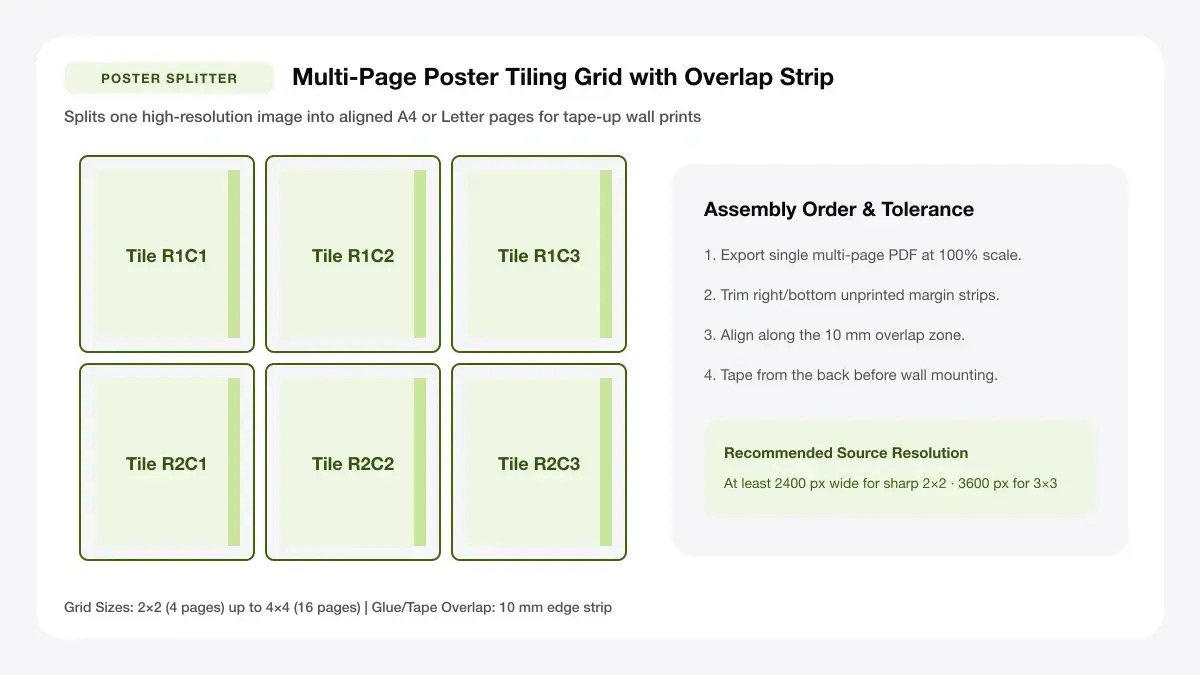
Slice One High-Resolution Image Across 2x2 to 4x4 Pages
Enlarge banners and wall art onto standard home A4 or Letter sheets with numbered tile markers and clean glue-overlap margins.
How to use the poster splitter in 4 steps
Enlarge one high-resolution image across 2×2 (4 pages), 3×3 (9 pages), or 4×4 (16 pages) with clean alignment overlap.
Step 1: Upload your large image
Load your sharpest original poster image, classroom chart, or pattern file straight into the multi-page tile slicer.
Step 2: Choose poster size or page count
Choose 2×2 (4 A4 sheets ≈ A2 size), 3×3 (9 sheets), or 4×4 (16 sheets) to set target physical wall dimensions.
Pick a grid such as 2x2 or 3x3
Match tile page orientation to your poster shape—tall vertical portraits slice efficiently onto Portrait A4 tiles.
Set tile overlap for easy taping
Configure a 10–15 mm overlap margin (instead of blank gap) so neighboring paper edges tape flat behind the trimmed seam.
Step 3: Preview overlap, crop marks and page order
Let the slicer proportionally fill the target poster canvas cleanly so no edge tile prints half-empty white strips.
Step 4: Download all pages as one PDF
Export the multi-page poster PDF, verify Actual Size (100%), and assemble tiles row by row with matte tape.
Print big picture on multiple pages: layouts and presets
Poster tiling calculates proportional pixel slicing and optional overlap glue tabs automatically across 4 to 16 printer sheets.
2x2 poster (4 sheets)
Splits one image across four A4 or Letter pages to create a medium-sized poster nearly twice as wide and tall as one sheet.
About 420 x 594 mm on A4 sheets
Best for wall art and school posters
3x3 poster (9 sheets)
Spreads your artwork across nine sheets for an impressive A1-scale wall display or party backdrop.
Roughly A1-sized final poster
Custom poster size
Adjust Columns (1–6) and Rows (1–6) independently for wide horizontal banners or tall vertical charts.
Enter final width and height
Best for exact frame or wall sizes
— FREE INTERACTIVE SHEET GENERATOR —
Build & Download Your Print Big Picture on Multiple Pages PDF
Configure paper size, margins, gutters, and crop marks in real time using the print big picture on multiple pages workspace above—no account or watermark.
Print large picture multiple pages: paper size and print settings
A tiny 2% scale difference breaks poster grid seams across 3-foot spans—lock 100% actual scaling before printing all tiles.
Page size and orientation
Using A4 or Letter tiles
Feed identical plain 100–160 gsm A4 or Letter matte presentation paper throughout the entire multi-page run.
Scale, margins and bleed
Print at 100% or Actual Size
Select Actual Size (100%) strictly—Shrink to Printable Area creates thin white gaps inside tiled seam edges.
Keep a safe margin
Keep trim marks enabled along sheet edges so a steel ruler slices right down the 5 mm overlap boundary cleanly.
Print picture on several pages: recommended settings
Keep an 8 mm margin and 8 mm tape overlap so every printer border is trimmed cleanly and adjacent tiles align without gaps.
Print quality and file format
PDF versus JPG output
Multi-page vector PDF delivers numbered tile pages in exact row-column order so assembly on the floor takes minutes.
Print one image on multiple pages for everyday projects
Desktop poster splitting turns an ordinary home printer into a large-format wall banner, sewing pattern, or event backdrop generator.
Classroom maps and charts
Multi-page tiling makes oversized classroom maps and charts achievable on standard office paper without commercial plotter wait times.
Large stencils and craft templates
Multi-page tiling makes oversized large stencils and craft templates achievable on standard office paper without commercial plotter wait times.
Tips for cleaner, sharper prints
Essential pixel-density and seam-taping practices so tiled wall prints look unified from normal viewing distance.
Start with a high-resolution image
Remembering to "start with a high-resolution image" avoids soft pixel blocks when enlarging photos across 4 or 9 joined sheets.
Keep 5 to 10 mm overlap for trimming
Remembering to "keep 5 to 10 mm overlap for trimming" avoids soft pixel blocks when enlarging photos across 4 or 9 joined sheets.
Number the pages before you tape them together
Remembering to "number the pages before you tape them together" avoids soft pixel blocks when enlarging photos across 4 or 9 joined sheets.
Frequently asked questions
Can I print one photo on multiple pages?
Yes. Upload any JPG or PNG above, choose 2×2, 3×3, or a custom column/row grid, and export a multi-page PDF where each page prints one numbered tile.
How many pages do I need to print a big picture?
A 2×2 grid (4 pages) yields roughly an A2 poster; a 3×3 grid (9 pages) yields roughly an A1 poster; and a 4×3 grid (12 pages) creates a wide banner.
How do I print a picture larger than one page?
Split the image into overlapping tiles in this poster splitter, print the resulting PDF at 100% scale, trim one edge of each overlap, and tape the tiles together from behind.
What resolution does a poster need?
Aim for at least 1,500–2,500 pixels on the short side for a 2×2 poster, or 3,000+ pixels for a 3×3 wall mural viewed up close.
— EXPLORE MORE —
More print sheet tools and guides
how to print a big picture on multiple pages
Read the complete guide to resolution, overlap, and poster taping.
arrange photos for printing
Go the other direction: combine many small photos onto one sheet.
a4 collage maker
Build a single-sheet A4 photo collage with borders and titles.
— PRINT-READY IN UNDER A MINUTE —
Ready to Print Your Print Big Picture on Multiple Pages?
Jump back to the live canvas workspace above to customize your layout and download a locked-scale PDF, or explore companion tools.