Pencil-Mark Duplex Orientation & Shift Correction Guide
Run a quick plain-paper corner check before feeding expensive cardstock so front and back card prints land within 1 mm.
What you need before you start
Use a thick opaque cardstock sheet and keep artwork cleanly centered before testing front-to-back flip direction.
A front and a back design
Keep front artwork simple and avoid wrapping hairline frames close to the trim edge on the reverse side—symmetric 3–4 mm safe zones absorb natural ~1 mm paper-roller shift gracefully.
A printer with duplex or manual flip
Even if your inkjet includes auto-duplexing, manual rear-tray flipping outperforms auto-duplex mechanisms on stiff 250–300 gsm card sheets that jam inside tight internal U-turn rollers.
Step-by-step: print using duplex or manual double-sided printing
Follow these calibration steps carefully whenever tackling print double sided business cards at home runs so Page 2 never prints upside down or shifted left.
Step 1: Make a two-page PDF (front, back)
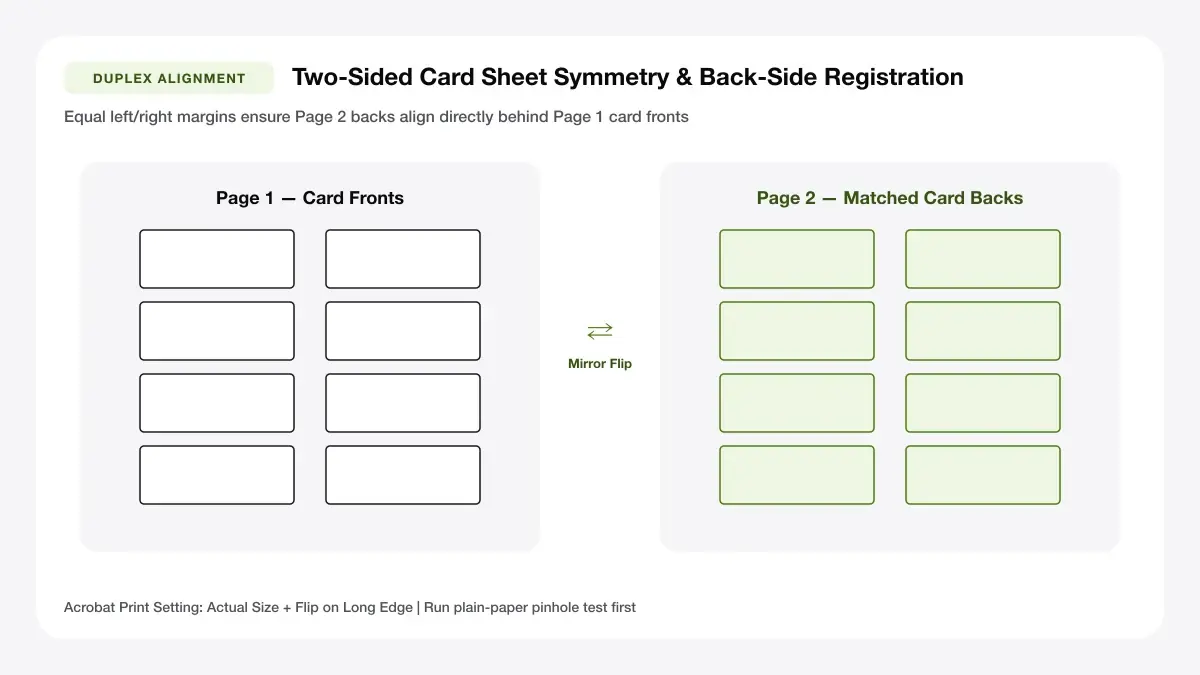
Export a clean two-page PDF where Page 1 holds all 10 card fronts symmetrically centered and Page 2 holds the back of business card template artwork centered identically.
Step 2: Print the front on a test sheet
Print Page 1 alone onto a sheet of ordinary 80 gsm paper first, drawing a small pencil arrow at the top-right corner while it sits facing out in your tray.
Duplex printers
If printing lighter ~180–200 gsm stock on a straight-path auto-duplexer, select Two-Sided -> Flip on Long Edge (for portrait sheets holding horizontal cards) and test one blank page against light.
Manual flip: long edge vs short edge
On portrait A4/Letter sheets, flipping paper horizontally like turning a book page keeps heads upright on both front and back (Long Edge); flipping top-over-bottom flips Page 2 upside down unless using Short Edge setting.
Step 3: Mark the paper orientation
Watch carefully how the top corner arrow exits your printer—face-up vs face-down and head-first vs foot-first—so you re-insert the cardstock identically on Pass 2.
Step 4: Flip and print the back
Load the printed sheet back into the rear manual feed facing cleanly for Page 2, then print Page 2 alone onto the blank side.
Back of business card template
An ideal back of business card template skips thin double borders right next to outer trim edges—giving natural ~1.5 mm roller tolerance so cards still look centred after trimming.
Alignment marks
Place outer corner crop ticks exclusively on Page 1 (front), never printing double overlapping cut lines on Page 2 unless verifying registration on copy paper first.
Step 5: Check alignment and cut
Hold your completed test sheet directly up against a bright window! Look through the sheet to verify Page 2 QR codes sit cleanly inside Page 1 boxes, then slice exclusively using Page 1's crop ticks.
— FASTER BROWSER ALTERNATIVE —
Skip Manual Setup — Use Our Free Print Multiple Business Cards on One Page
Instead of wrestling with printer driver scaling or manual table margins, generate a locked 100%-scale PDF directly in your browser using our print multiple business cards on one page tool.
Common problems and quick fixes
Double-sided misalignment happens consistently in predictable patterns—check which fix matches your test sheet immediately.
The back is upside down
You inverted top-to-bottom rotation when reloading the rear tray (or used Short Edge instead of Long Edge binding on a portrait PDF). Rotate sheet 180° in tray reload—or toggle Long/Short flip inside Print Properties.
Front and back are misaligned
Push plastic edge-guides firmly against your paper stack inside the feed tray without bowing sheets, and ensure your layout grids on Page 1 and Page 2 share symmetrical identical left/right margins.
Ink shows through the card
Paper lighter than 200 gsm bleeds heavy dark backs faintly through to the front under desk lamps. Switch to thick 280–300 gsm high-opacity matte cardstock.
Faster option: let a layout tool do the work
Tired of shifting Word tables separately on Page 1 and Page 2? Generate an exact mirrored two-page sheet automatically in seconds.
When a sheet maker saves time
Enable Include Back Side inside our Business Card Studio to create locked symmetrical Page 1 and Page 2 PDF sheets tuned specifically for double-sided home flipping.
Printable business cards
Build matching front and back sheets automatically inside Printable Business Cards—download an aligned 2-page PDF and print safely at home.
Frequently asked questions
Common scaling, paper tray, and export troubleshooting questions for step-by-step: print using duplex or manual double-sided printing before printing a final sheet.
How do I print double sided business cards on a printer without duplex?
Print Page 1 (fronts) first onto cardstock, note exact tray orientation, flip sheets horizontally like turning a book page back into the manual feed tray, and print Page 2 alone.
What goes on the back of a business card?
Great reverse options include a sharp 20 mm QR code linking to your booking/portfolio page, street directions, brief service list, or appointment reminder lines.
Is there a double sided card template for Word?
While many people search for a double sided card template word file, fixed table alignment inside Word shifts easily across versions; using a locked vector two-page PDF keeps fronts and backs centered reliably.
— PUT THIS WORKFLOW INTO ACTION —
Build Your Sheet with Print Multiple Business Cards on One Page
Generate a print-ready PDF with exact margins, custom gutters, and hairline crop marks right now—completely free and with no sign-up.